Publish and troubleshoot sitemaps
How to Turn Sitemap XML into Excel Rows and Columns
Export sitemap URLs and available XML fields to CSV or XLSX, including URLs inside a sitemap index, and check the results in Excel.
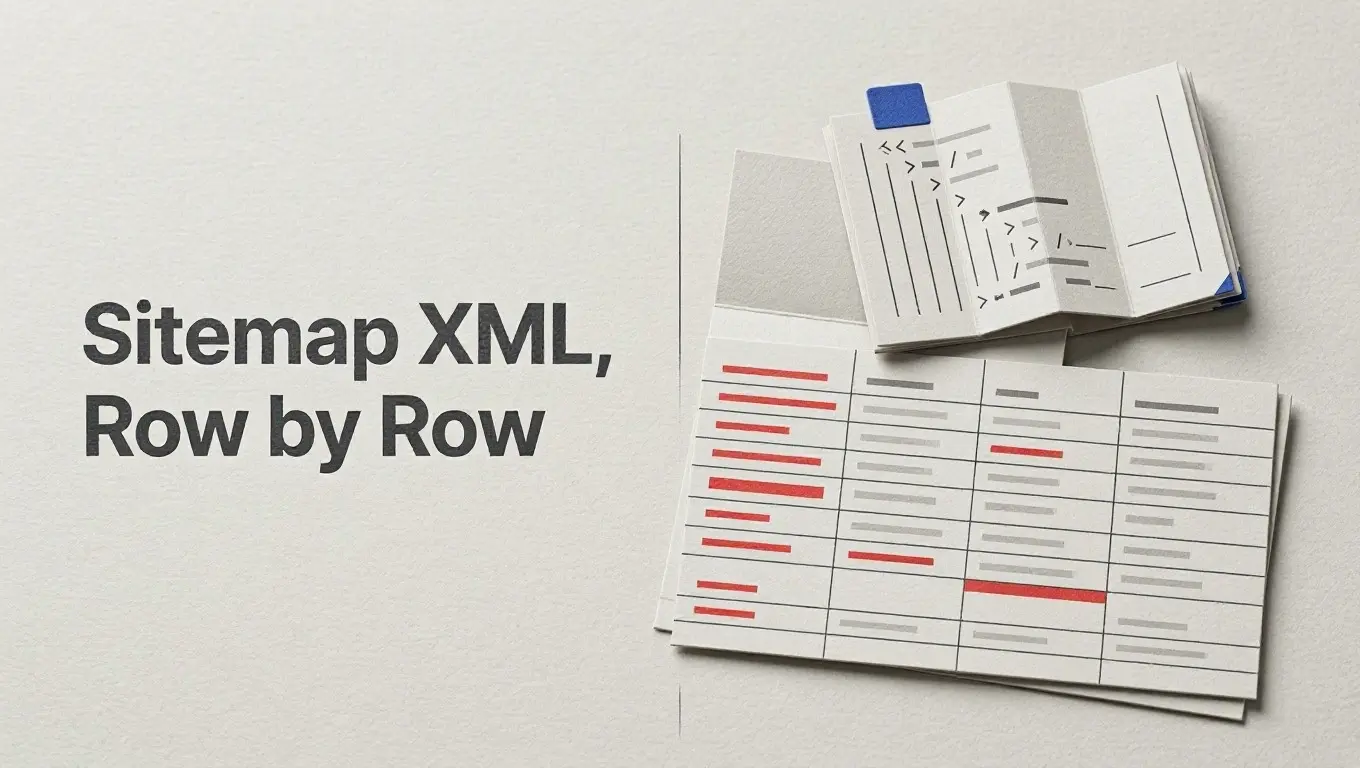
To turn a sitemap into a useful Excel sheet, extract its page URL entries, export them as CSV or XLSX, and open the file in Excel. The distinction to check first is whether your input lists pages or points to other sitemap files. For an index, the finished sheet should contain URLs from those referenced files—not just a list of the files themselves.
Choose an extractor that matches the input
Start with the sitemap you actually have: a hosted URL or a local XML file. The Sitemap Converter offers both an upload and a hosted-URL option. It also says it fetches the sub-sitemaps referenced by an index and combines their data before export. That index behavior matters if you want one spreadsheet of page entries from several sitemap files.
If you have a hosted sitemap URL, the Apify Sitemap URL Extractor accepts one or multiple sitemap URLs. Check an extractor’s input options rather than assuming that a tool described as a “sitemap extractor” accepts local files, follows an index, or does both. Likewise, do not assume a free extractor includes the export format or fields you need; inspect its available options before processing a large input.
Export page entries, not a list of sitemap files
Run the extractor and inspect its preview, if one is available. Aim for one row per page URL, with the XML fields for that entry in adjacent columns. If the input was an index, a sheet containing only sitemap-file URLs has not answered the page-level question. Choose an extractor that fetches the referenced sitemaps, or process those files separately and combine the resulting page rows.
Choose the output format the tool offers. Apify documents a CSV export that can be opened in Excel. Botster’s sitemap URL parser lists XLSX, CSV, and JSON downloads; it says using the service requires registering or logging in. Cliptics’ sitemap extractor also describes CSV and XLSX exports. XLSX is convenient when offered, but CSV is enough for this task if Excel separates the headers and values into columns when you open it.
For a combined export, keep a source-sitemap column if the extractor provides one and its meaning is clear. It can help you trace a row to an input file. Do not mistake the URL of the index you submitted for proof of which child sitemap contained a particular page; check the column definition and compare a sample with the child XML.
Keep XML fields separate from crawled page data
Begin with the URL column. Add lastmod, changefreq, and priority only where those values occur in the source entries and the parser exposes them. Apify’s example output includes those four fields. SEO Tools for Excel’s Sitemap Parser lists URL, modification date, frequency, and priority, along with Google News and image fields. Those specialized columns are useful when the relevant sitemap data is present; they are not required columns for every export.
Check what a tool means by metadata. A sitemap-field export and a page crawl can produce different information. For example, a sitemap-to-Excel project says it visits pages listed in the sitemap and collects titles, canonicals, headings, and Open Graph fields. Those are collected from pages, not simply extracted from each sitemap URL entry. If you use both kinds of output, label them distinctly so a page’s current title is not mistaken for an XML field.
Check the sheet against the XML
Open the export in Excel and make a short check before analyzing it:
- Confirm there is a URL header, that page URLs occupy separate rows, and that each requested field has its own column. If the file opens as an unusable block of text, fix the import or export choice before reviewing the data.
- For an index, pick URL rows from more than one referenced sitemap. Compare each with the corresponding child file. This catches an export that stopped at the index references or included only one child.
- Compare a few rows field by field with their XML entries. Include one entry that has optional values and one that does not. A blank
priorityorlastmodcell is not, by itself, an extraction failure if that value is absent from the source entry. - If you combined outputs, check the source-sitemap value for those same rows rather than trusting the column heading alone.
Once those samples match, you have a spreadsheet suitable for reviewing the exported entries and available fields. The check establishes that the sampled rows match their source XML; it does not establish that every row is correct, or that any listed page was crawled or indexed, or ranked.