How to Diagnose XML Sitemap Errors: Trace Each Report to Its Failure
Diagnose sitemap fetch, XML parsing, and listed-URL errors by checking the exact published URL and verifying the right repair.
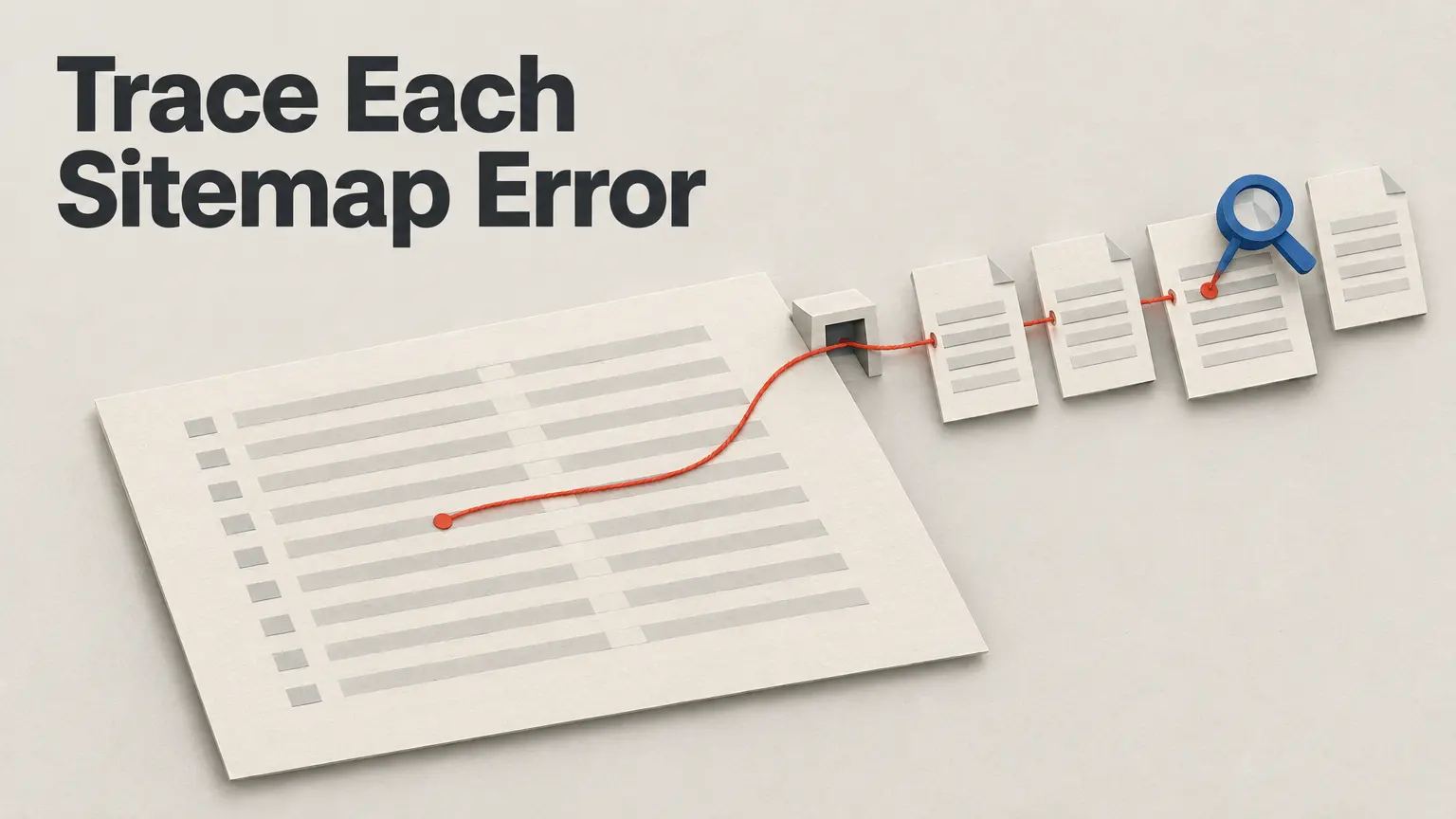
A sitemap error does not always mean the XML is malformed. First, record the exact message in Google Search Console and the URL it refers to. Is Google failing to download or parse the submitted sitemap (or sitemap index)? Or did it read the sitemap and then fail to crawl a URL listed inside it? Those are different investigations. Google’s “URLs not accessible” message, for example, concerns an error encountered while crawling a listed URL, which you can investigate with URL Inspection (Google Search Console help).
Check what the submitted URL serves
Request the exact URL submitted in Search Console, not just the homepage or a local sitemap file. Note its HTTP status, any redirect destination, and the response body. A sitemap URL that leads to an HTML error page calls for an endpoint or access fix, not an XML-editing session. If it redirects, inspect the destination too: that is the response you need to understand.
For a reported HTTP error such as 404, Google recommends checking that the submitted URL is correct and that the sitemap exists there, then resubmitting it (Search Console help). Confirm the published endpoint serves the intended sitemap before changing entries inside the file.
If the endpoint does return XML, validate that published response. An XML sitemap validator can check formatting; a schema-based validator can also check structure against the Google Sitemap XSD schema (XML-Sitemaps validator; Aspose Sitemap Validator). These checks answer whether the content is well formed or structurally acceptable to the checker. They do not establish that Google can fetch the endpoint. A local copy passing validation is even narrower evidence if the published URL serves something different.
Follow a parsing error to its source
If Search Console reports a parsing error, use the validator’s reported location to inspect the corresponding part of the published response. Google identifies unescaped special characters in XML values, including URLs, as a common cause. For example, this hypothetical <loc> contains a raw ampersand:
<loc>https://www.example.com/products?color=blue&size=large</loc>
The XML value needs an escaped ampersand:
<loc>https://www.example.com/products?color=blue&size=large</loc>
The second form preserves the intended URL value while making the XML parseable; the source of this rule is Google’s parsing-error guidance. Fix the output that generates the entry, then request and validate the published URL again. Otherwise, the next generated response may bring the error back.
The error location also helps when the problem is before the sitemap content. If the report says the XML declaration is not at the start of the document, inspect the first characters of the response for a leading blank line or space. WordPress sitemap troubleshooting documentation identifies whitespace emitted before the XML declaration as a possible cause (Yoast; Rank Math). Do not assume that every parsing error has this cause; inspect the bytes the endpoint actually returns.
Investigate access and listed URLs separately
If Search Console reports that a URL in the sitemap is inaccessible, inspect that URL with URL Inspection. A valid sitemap says nothing conclusive about whether Google can access each page it names. For a robots.txt warning, establish which file or URL is blocked before changing the restriction; Google recommends URL Inspection for that check (Search Console help).
Also inspect entries Google reports it cannot follow. Too many redirects can prevent Google from following a listed URL; Google suggests putting the destination URL in the sitemap instead. Where possible, use complete, absolute URLs rather than relative ones (Search Console help). These are entry-level repairs. They will not fix a submitted sitemap endpoint that itself returns 404.
Use a platform fix only when the symptoms fit
On a WordPress site using Rank Math, a 404 at the sitemap index has a documented troubleshooting step: open Settings → Permalinks and save the settings, even without edits, to flush permalinks (Rank Math sitemap troubleshooting). Check the index URL again afterward. That step is not a general remedy for XML parsing errors or inaccessible listed pages.
For a Rank Math sitemap that looks blank, inspect its response source before diagnosing it by appearance. Rank Math associates empty source with a possible plugin or theme conflict; if the source contains sitemap data, its guidance instead points to sitemap-cache troubleshooting (Rank Math). The distinction matters because a white-looking page and an empty response are not the same observation.
Verify the specific repair
Fetch the submitted URL again. Confirm where any redirect goes, that the endpoint returns the intended sitemap rather than an HTTP or HTML error, and that a validator finds no relevant XML format or structural error in the published response. Then resubmit or recheck the sitemap in Search Console to see whether it still reports the same fetch or parsing failure. Validation is a format check, not a promise about crawler access or indexing.
If the original message concerned a listed URL, finish with URL Inspection for that specific URL. The sitemap can be perfectly parseable while the page it lists remains unavailable to Google.